
Blogger Navbar – How to Remove It
First off, what is the Blogger Navbar?
The Blogger Navbar appears by default at the top of every Blogger-powered blog. It is available in several colors, and is configured in the Template tab in Blogger’s interface. If you are using a classic template, you’ll see a menu from which you can select a color. For blogs using Layouts, just click the “edit” link on the Navbar page element. Blogger gives a more detailed explanation of this here.
There are several reasons why I think it’s important to remove the Blogger nav bar but I’ll name my two most important reasons. First one being that it’s an eye sore and makes your blog look less professional. Secondly, when you click on the “next blog” button you never know what type of blog you might stumble upon. There are so many spam blogs with adult content or other information you don’t want young people to read. When you do block the navbar on your own blog, you prevent others from also easily leaving your site and accidentally heading to one of these spam sites.
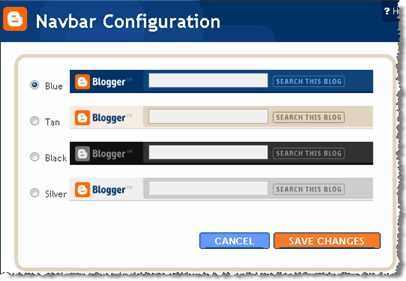
Unfortunately Blogger doesn’t give you the option to remove the navbar easily but this simple modification to your template allows us to hide it. The good news is that it’s not against Blogger’s TOS so it’s not illegal to do. I read a post recently by Blogger Support that stated
While it’s not officially against our TOS, we discourage folks from removing it because we think it’s a great feature with more improvements to come. Follow the above instructions at your own peril, as Blogger controls the TOS and has been known to change it.
So the change you want to make is to the stylesheet. First make sure you backup your current template just in case you make a mistake. Click on the “Download Full Template” link ( go to “Template” => “Edit HTML”) and save it locally. Next, from within your template code you want to scroll down until you find ]]></b:skin> and stop. Then you’ll want to add this line of code right above this line.
#navbar-iframe {height:0px;visibility:hidden;display:none}
So once you’re done, it should look like this:
#navbar-iframe {height:0px;visibility:hidden;display:none}

]]></b:skin>
After that, save your template and view your blog. The top Blogger navbar should have disappeared! Looks much better now doesn’t it? If you ever want to add the navbar back, it’s simple. Just remove the line of code we just added. Also, if you ever switch templates, make sure to follow these instructions again because it needs to be done with each new template you use.
Ready to super charge your blog? Check out our professional premium blogger templates or make money by joining our blog affiliate program!
If you like this post then please consider subscribing to our eBlog Templates RSS feed. You can also subscribe by email and have new templates and articles sent directly to your inbox.
Trackbacks
- AKA Riptide Furse » My del.icio.us bookmarks for March 7th through March 10th on March 10, 2008
- Picking a Platform for Your Blog on January 3, 2010
36 Responses to “Blogger Navbar – How to Remove It”
Blogger Sponsors
- Improve Your Blog in 31 Days – Guaranteed
- Build a Better Online Business with WordPress
- Become a Blogger Just Reopened – 5 Days Only!
- Roadmap to Become a Better Blogger
- Free Image Hosting – Photobucket
- How to Install Google Analytics on Blogger
- Improve Your Google Rankings in One Easy Step
- 50 Excellent Blog Footers
- Free Instant Blog Logos
- Create Cool Images With a Wet Floor Effect Maker
 ads by google commented on
  huh commented on
  huh commented on
I’ve been looking for this tutorial for so long. Now I finally found it. Thanks.
😎 thanx very much . younr brilliant
thanks for this…i tried out different versions of removing the navigation bar, to no avail…at last, i found one…you are good…do visit our site please, thanks
Thank you, the post will help many new blogger… keep it up…
This may be a bit of a stupid question….but I usually access my blog to edit through my dashboard on the navbar. So, when this is gone, what do you all use to access your dashboard area most easily?
@gaijingirl, you just need to go to blogger.com and then login from there.
Thank u friend….a very good clear explanation…..u rock
Thanks for sharing this.. the code work well for my blog 😐 😐
http://mortgage88.blogspot.com
I don’t have code that looks like: ]]> The code in my blog looks like this: <![CDATA[/*
When I try to put in the line of code to delete the Navbar it doesn’t work. Help!
i also think this navbar is so …. 🙁 but i try
but nothing happen..
I would like to remove the Blogger logo from next to people’s comments. I am hosted by Blogger, but now have my own address. Any way of hiding/disguising the blogger logo?
Simple and works like a charm … Thanks!
Well, it didn’t work for me and I really hate that navbar in my blog since I have another one I will like to replace it with. :o(
Guess what, I decided to try putting it above the Blogger Template Style heading where you see the dashes, right above it. I guess it also depends what template you are using.I used the Abdul Munir template which it didn’t work with the example shown above.
#navbar-iframe {display: none !important;}
————————————————
NAME OF BLOGGER TEMPLATE STYLE HERE
nice post .David
similar tutorial is at
Hid/Remove Navbar
Thanks for sharing this! It worked great!
thanks, worked perfectly
it is very nice. You solve my problem.navbar on my site show the artificial of my web
thanx
Great Help man!!!
I was soooooooooooo desperate
Hey bro… it’s fantastic… My Navbar problem is settled…
But one more thing, can i remove the links by my template provider… Looks awkward too…
thanks man.
In case anyone is interested in whether or not hiding the blogger navbar is a violation of the Blogger TOS, it isn’t. See the following post with an explanation by a Blogger employee:
http://groups.google.com/group/blogger-help-customizing/browse_thread/thread/c7e3226fe35da11e?fwc=1&pli=1
worked like a dream! 🙂
Or you can toggle it using this code instead
/* Blogger Navigation Bar */
#navbar-iframe {
opacity:0.0;
height: 10px;
filter:alpha(Opacity=0)
}
#navbar-iframe:hover {
opacity:1.0;
height: 30px;
filter:alpha(Opacity=100, FinishedOpacity=100)
border: 2px;
}
/*Blogger-Help-http://bloggerstop.net*/
oops sorry about that blogger help link, you don’t have to put that it was an accident on my part 🙁
thank you
here is the video..
step by step..
video tutorial..
very easy to understand with this video..
http://www.metacafe.com/watch/739548/remove_blogger_navbar/
help please!!! i like the navbar not being there, only now i cant get to the menu to edit my blog! please help !
Hmm..I need some help with my blog, too..I wanna remove the link bar by the blogger template provider..could anyone help me? thx
thanks friend
nice one! cheers for the post!
http://www.edailyjobs.com
Wow, thank you for making this post so straight forward and clear 🙂 Even I managed to understand it and I’m so computer illiterate LOL.
Another way of hiding navbar in new blogger
http://nerdsrealm.blogspot.com/2010/08/how-to-hide-disable-or-remove-blogger_18.html
Thanq very much.
It actually didn’t work for me, but the second one in the comment by Nerd did. I think it may depend if you’re using old or new blogger (I’m using the new version)?