
(Don't have an account yet?
Register for free!)
Blogger Template Info
- Author: eBlog Templates
- Views: 20,582
- Downloads: 0
- Added: Mar 14th, 2008
- Rating:


- Live Demo
Blogging Pro Template
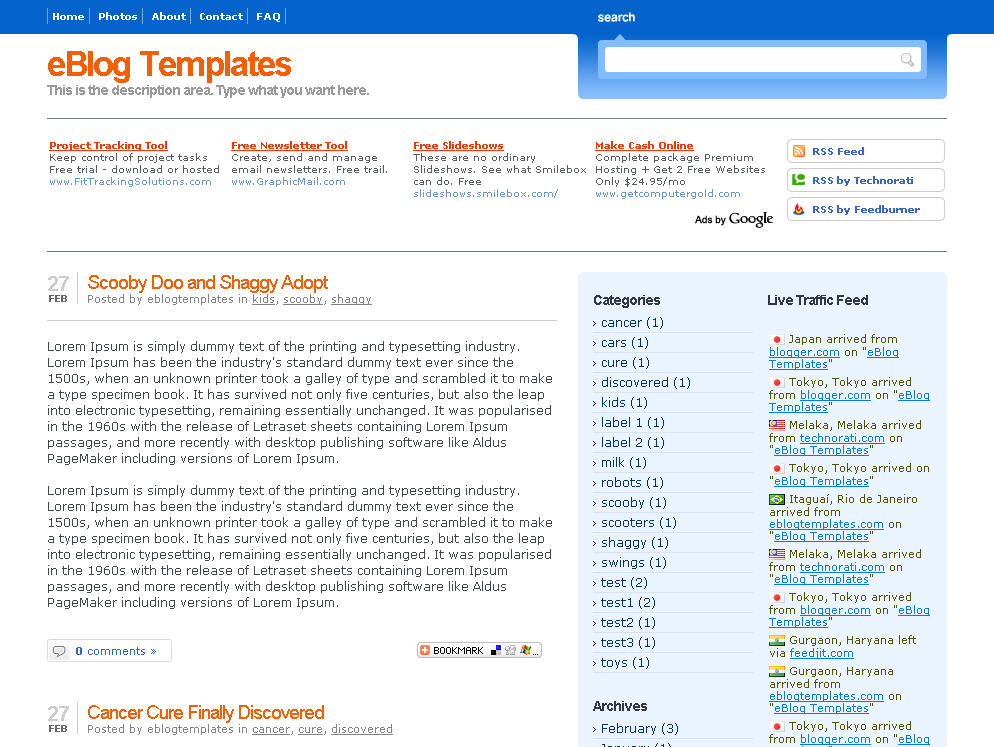
If you’re looking for a great make money online Blogger template then I’ve got news for you. Blogging Pro is the latest and greatest web 2.0 template built just for that. This is another exciting cutting-edge Blogger template that we’re giving away for free and all we ask of you is to keep the footer links intact.
You might see some other conversions of this template out there but I promise you’ll find ours to be top-notch and feature-rich. Check out our live Blogging Pro for Blogger demo to see and interact with the template before you even download it!
This template was originally designed for WordPress by Design Disease and converted to WordPress by Blogging Pro. We loved this template but were disappointed we couldn’t find a good conversion for Blogger users so guess what? We converted it to Blogger ourselves!
It’s a rounded corners, web 2.0, three column, orange and shaded blue beauty with some great features and widgets you’d normally only find with a WordPress theme. Here’s a list of what’s included:
- Dynamic header tab creation
- Prime location AdSense header ad space
- Multiple rss feed subscription options ready to go (Blogger rss, Technorati, and Feedburner)
- Custom individual post date display
- Addthis bookmark and sharing individual post widget
- FEEDJIT live traffic feed widget
- Custom comments image display
- Three column footer with your recent posts, recent comments, and recommended money maker links
- Amazon deal of the day dynamic widget
- Clean and organized template layout editor screen
You can see from this screenshot that the actual editor is nicely setup so you don’t need to scroll or try and figure out how to click on the “edit” widget links. Most templates that you download make it tough to edit — not this one!
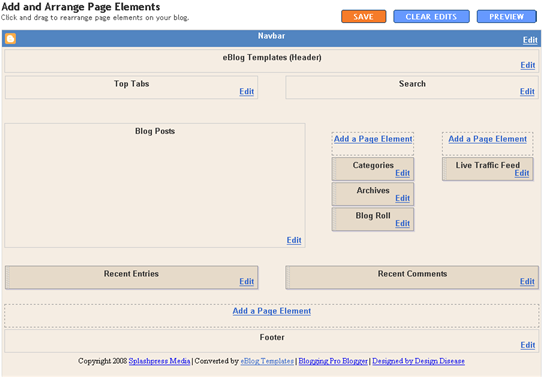
Now before you can get fully up and running with this new Blogger template, you’ll need to properly set things up. Please follow the steps below and read items carefully. The same questions are usually asked over and over by people posting comments, yet the answers are usually right in front of them. This is especially true for why the post date might not be working on your blog.Let’s start from the top of the template and work our way down each item. Don’t be too surprised when the template doesn’t look like the screenshot when you first load it up. You’ve got some configuring to do first! 🙂
Top Tabs Setup
This is actually pretty easy since the top tabs are a link list. You don’t need to alter the template code. Just go into your Blogger page layout and click on the “edit” of the “top tabs” widget. Start adding new links and then save. A “home” link will automatically appear once you setup this widget so you won’t need to add one. Save and refresh your blog to see the pretty new tabs you just created. Here’s what it should look like (different names of course)

Configure The Three Header RSS Links
This section is actually setup to dynamically work except for the Feedburner link. You’ll first need to have a FeedBurner account. If you don’t already have one, please read the “How to Setup FeedBurner on Blogger” article and then come back.
Once you’ve got your FeedBurner account, you’ll need to edit this template code and replace a few parts. Search your template code for the following text: <strong>YOUR-FEED-NAME-HERE</strong> . Replace the text with your FeedBurner name (i.e. eBlogTemplates is ours)
After you’ve changed this link save your template and check to see if it works. If you’re having trouble finding your feed name or id, please read our article above or see FeedBurner’s help section to locate it.
Header AdSense Setup
This is a great location for showing ads and we really like how the designer laid everything out. The default ads are just a placeholder but of course feel free to use them until you find a replacement. You’ll need to again edit the template code to swap out the ads. Search your template for <div class=”Syndicate”> and right below that is where you’ll find the ad code block.

Remember, when you paste in your own ads you will need to convert the ad code into a workable Blogger format otherwise you’ll get an error when trying to save it. Use our free AdSense Code Converter to change it automatically for you. You can also look at the existing ad code included in the template and use it as a model.
Individual Post Date Setup
This is a very important step and one that most people think is broken when they install the template. It’s not folks. You just need to go into your Blogger settings and make a small change before it will work.
After you install the Blogging Pro template, go to your Blogger’s “Settings” => “Formatting” and look for “Timestamp Format”. Make sure you change it to this format: “Tuesday, January 25,2008? as shown below.

This needs to be set in this format otherwise the date won’t show up properly on each of your posts! Actually the date will most likely be blank and you’ll think the template is broken. Remember to change the TIMESTAMP FORMAT (fourth item down on the page) and NOT the Date Header Format option.
Amazon Deal of the Day Widget
This is actually a really cool widget put into the sidebar by default. If you have never heard of Amazon’s “Deal of the Day” then you’ve been missing out! Basically each day Amazon has one special item they drastically reduce in price.
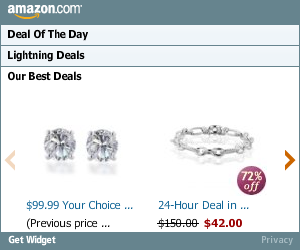
Before you’d have to visit their site to see the deal but now it gets delivered directly to your Blogger site! If you want to replace or remove this widget you’ll need to edit the code and look for the following text “amazon-widget”. The line of code below that is the actual Amazon widget so just remove or replace it.
Footer Recent Posts and Comments Widgets
I really love this part about the template. In the past, your footer was an overlooked piece of real estate on your blog. With this template, it makes good use of your footer like many of the other pro bloggers out there today.

This one is easy to setup since we’ve already written an entire article dedicated to this. Please see “How to Setup Recent Comments and Posts Widgets” to configure these two widgets. These two widgets will both appear in the footer once you configure them properly. It’s a very good use of space and provides search engine spiders an entry point into your blog content.
Recommended Money Makers Section
This is the other footer element which comes already setup with our recommended money maker links and programs. This idea came from the ProBlogger.net web site and we included it in our template. You are welcome to keep the links intact or feel free to replace them with your own. You will need to edit the template code to swap them out and also have affiliate accounts setup with each vendor. It’s easy if you don’t have any accounts. Just click on each footer link to setup a new account. Search your template code for “Recommended Money Makers” and you’ll see the links below that.
Live Traffic Feed Sidebar Widget
This is a really cool feature within this template and the best part is you don’t need to do anything to setup it up! There are some further options if you click on “options >>” on your actual blog page under the widget but that’s it. This is a sample of what it will look like once you start generating some traffic (or more traffic) to your blog.
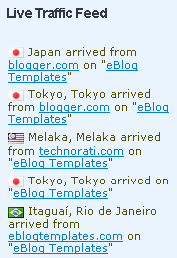
You should now have the template all setup and ready to go. I hope you enjoy this beauty and please make sure to keep the footer links intact since numerous hours of my time and the original designer were put into making it. That’s all we ask for giving away this template! Enjoy!
Thanks again to Design Disease and the Blogging Pro guys for making this wonderful template available for free. It was a great challenge converting it to Blogger but it was well worth the trouble.
Ready to super charge your blog? Check out our professional premium blogger templates or make money by joining our blog affiliate program!
Want to make your blog stand out from the crowd? I recommend giving your newly downloaded Blogger template a unique and personalized look. Read our Free Blogger Header Images article and find yourself a great custom header image!
If you like this post then please consider subscribing to our eBlog Templates RSS feed. You can also subscribe by email and have new templates and articles sent directly to your inbox.
Trackbacks
- 25 Premium Like Though Free Blogger Templates | Montiroxa Press© 2010 on May 4, 2010
- Blogging Pro Template « ABC Templates Info on June 22, 2010
- 10 Beautiful Blogger Templates – Part 3 on July 5, 2010
- 25 Premium Like Though Free Blogger Templates on April 17, 2011
- 25 Premium Like Though Free Blogger Templates | Kill your Time on May 29, 2011
- 22 Wonderful Google Blogger Templates for Free Download | Top website Designing Company in India on December 16, 2011
- 25 most viewed Blogger Templates on April 28, 2013
- 25 Premium Like Though Free Blogger Templates • 1stwebdesigner on June 24, 2014
295 Responses to “Blogging Pro”
Blogger Sponsors
- Improve Your Blog in 31 Days – Guaranteed
- Build a Better Online Business with WordPress
- Become a Blogger Just Reopened – 5 Days Only!
- Roadmap to Become a Better Blogger
- Free Image Hosting – Photobucket
- How to Install Google Analytics on Blogger
- Improve Your Google Rankings in One Easy Step
- 50 Excellent Blog Footers
- Free Instant Blog Logos
- Create Cool Images With a Wet Floor Effect Maker
 ads by google commented on
  huh commented on
  huh commented on
I can’t find the code to change the feedburner. at the top of this page it says to look for this code YOUR-FEED-NAME-HERE but it is not there.
oops, found the feed one, when i posted the <strong part it just made text bold so i just searched for the bold text without the <strong..
i found this adsense code but not sure which part to change? or if there is another way.
google_ad_client = "pub-6044026340890176";
google_ad_host = "pub-1556223355139109";
found amazon code but couldnt understand that too.
i wish there was a delete comments option, anyway i figured out how to do the adsense, and decided i will delete the amazon one, so problems solved.
ya….. joe joe….. the adsense code is irritating for our blog…. who’s publisher id is this… we want to put our own adsense publisher id only….
mr.author…… please tell about the adsence code..
what is this….
google_ad_client = "pub-xxxxxxxxxxxxxxx";
google_ad_host = "pub-1556223355139109";
is this affect any adsense code of my own…
jojone please change the adsence code..
put your adsence code below this like
google_ad_client = “pub-xxxxxxxxxxxxxxx”;
google_ad_host = “pub-1556223355139109”;
the second one is for blogger.. is not affect your earning
Thanks… I’ve used this template
I have modified this template, with easy widget for Recent Comment and Posts, and ihave included a comment box. Find it on Colorizetemplates(dot)com, with Blue or Orange Category.
Please help .
I cannot find the place to put the Feed .I have read over the html a dozen times .cannot find anything that says:your feed name here .
Also, where is that technorati link, can you get that changed ???
Thanks
hello abg
>go to your blogger account
>select Layout -> Edit html
>in edit html field -> tick the button in Expand widget template
>now hit ctrl+f or find YOUR-FEED-NAME-HERE
>just replace that to your name provided by feedburner
>now click save template…
tat’s all
just visit out my blog http://balajie90.blogspot.com/
plz can someone tell me what is:
google_ad_host = “pub-xxxxxxxxxxxxxxx″;
i cannot delet it!
and thanx
hello joe
don’t worry about that google ad host..
it’s like medium to publish your ad on website
that google_ad_host = “pub-1556223355139109″;
for only blogger.com to link with your website
tat is… that publisher id is owned to blogger.com to
publish your ad via blogger.com…
tat’s all..
but you are noticed to change tat client id to your own adsese code…
still confused. detail plizz
hi again, i have decided not to use this template now. the problem is that blogger wont let me use adsense now on the new template (from blogger).
is there some code i need to change? if not do you know how i can reset the blog without loosing posts?
thanks.
Hey…
Nice post! And really informative comments especially from balajie90. Keep writing thanks
already used this template…thx
I cant upload to new blogger setting.
seems like blogger has changed their setting….
Very sad….
Or maybe someone can assist me how to setting this template?
Thank you for this template.
http://krish-racer.blogspot.com/
Hi, i try this fantastic template but there is one thing that make me mad and sad. I have a problem to display the word “Post a comment” at the end of the comment list. Here (http://i34.tinypic.com/28kiooz.jpg) you can see the problem, that you can see also on your live demo of the template.
This problem with ad-blocks is only in the single pages, because in the home page everything is shown correctly.
I hope you can help me because I’m so worring about this, if the visitors can’t display the word “Post a comment” how they can comment my posts??
Thanks!! If you solve my problem you save my blogger life 🙂
Thank for this template.
http://internetstatic.blogspot.com/
I’ve been using this template for more than a couple of years.
One of the best I’ve seen here. 😀
@ jojones: just backup your old template.. then you upload your own template to it, or choose template from blogger also…. it wont affect any blog posts, but some META TAGS, Google Analytics code,Widgets are needed to RE-install,
http://beginners-bloggers.blogspot.com/
http://www.tipsinside.co.cc/
I like this template.
very nice…. thanks for this template!!
very nice tempalte.thanks eblog
Wonderful theme, but i can download it.
Hi, I try this fantastic template but there is one thing that make me mad and sad. I have a problem to display the word �Post a comment� at the end of the comment list. Here (http://i34.tinypic.com/28kiooz.jpg) you can see the problem, that you can see also on your live demo of the template.
This problem with ad-blocks is only in the single pages, because in the home page everything is shown correctly.
I hope you can help me because I�m so worring about this, if the visitors can�t display the word �Post a comment� how they can comment my posts??
Thanks!! If you solve my problem you save my blogger life 🙂
why I can’t display the date (in the beginer post title) when i posted my article?
anyone can help me please. You can see in my website,, http://pakeko99.blogspot.com/
thanks you very much
this template is so elegant,. thx
that is very interesting template…
is this theme optimized for adsense?
nice template. thx
can I download free this template blog ?
Thanks , very good template for blogger .. and thanks for sharing sir. god job
How can I get the cool templates like this, or is there a download link
This very beautiful theme , i love this , thanks sharing
This blogger template remind me first time i touch blogspot, i think its very cool if this template has a responsive feature for nowaday.