
How To Add The Blogger “Read More” Expandable Posts Link
This is a pretty popular Blogger hack that lots of people have asked me about. Instead of answering to each email individually, I thought it would make more sense to write an article about it.
With this hack, you can choose to display a select amount of text from the beginning of each post as a teaser instead of showing the entire post on the front page of your blog. Then when people want to read the rest of the post, they can click a “read more” link to see the full post. This is very handy if you have lots of long articles all on one page. (Note that you’ll need to have post pages enabled in order to make this feature work.)
Step #1 – Update Your Template Code
First you need to edit your existing code so I recommend copying and pasting it into notepad or any text editor. Also, it’s smart at this point to create a backup of your template just in case something goes wrong. Now do a search (CTRL + F) within the text editor for the following code post-header-line-1. This is the default code that Blogger includes but some custom templates remove or change this code so you might have trouble finding it. If you can’t locate this text then try searching for <data:post.body/> instead. Your template will for sure have this since it’s the tag that actually prints the body of your post.
Now depending on which code you were able to find will determine how easy the next steps will be. You might need to do some detective work first in order to get this working properly in your custom template. The idea is to get this new code into your template before the <data:post.body/> tag. Keep reading and hopefully the explanation will illustrate the concept clear enough so you are able to adapt this hack to your custom template.
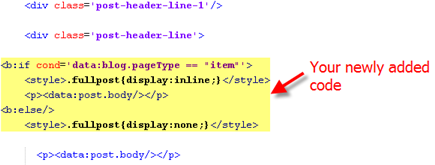
Add the following code below the <div class=’post-header-line-1’/> and <div class=’post-header-line’> tags if you’ve got both.
<b:if cond='data:blog.pageType == "item"'>

<style>.fullpost{display:inline;}</style>

<p><data:post.body/></p>

<b:else/>

<style>.fullpost{display:none;}</style>
The result should look something like this:
If you don’t have the default <div class='post-header-line-1'/> tag then your result should look something like this instead. This is how it would be done in the MushBlue Blogger custom template:
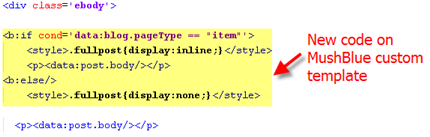
Notice in both examples that the code in yellow and the <data:post.body/> tags are the same — it’s just tag above it that will differ based on the template you’re using.
Now let’s add one more bit of code which will actually create the “read more” link in your post. This code will go below the <data:post.body/> tag so copy the following and paste it in. Feel free to change the “Read more…” text to whatever you want the link to look like. Be careful not to delete any other code during this process.
<b:if cond='data:blog.pageType != "item"'><br />

<a expr:href='data:post.url'>Read more...</a>

</b:if>

</b:if>
Yes, there are supposed to be two </b:if> tags in the above code so don’t think it’ s a mistake. The result should look like this:
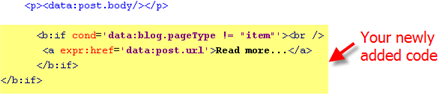
This code will be the same no matter what template you are using. Just make sure it goes below the <data:post.body/> as shown in the image above.
Now let’s look at what the final result should be. Here’s the updated code block you just worked on all put together:
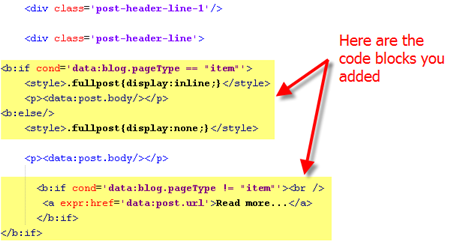
Ok, you’re all done editing the template code. Paste it back into your Blogger html window and save it. If you get an error, you made a mistake. The most common mistake is to accidentally delete a > or < while pasting in the new code. If it saved successfully, it’s time to move onto the next step and modify a quick Blogger format setting.
Step #2 – Add a Class Tag in Your Default Post Template
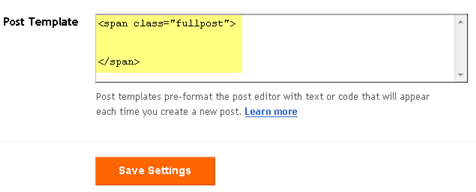
For this step, you need to navigate in your Blogger account to “Settings” => “Formatting” and scroll all the way down to the bottom. It’s the last option called “Post Template”. You’re going to paste in the following code:
<span class="fullpost">
</span>
You’ll want to keep the spaces in there which will make sense later. After you save this, it will look like this:
Step #3 – Create a New Post
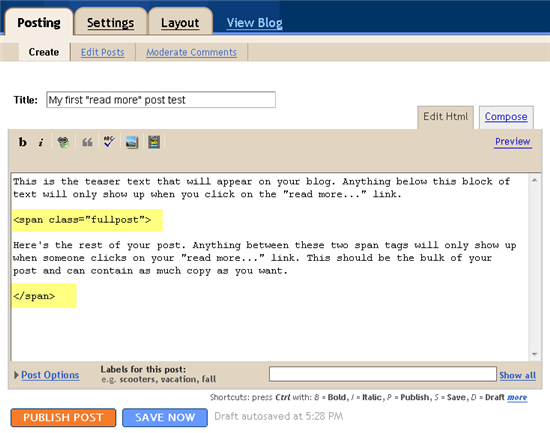
Ok, we’ve got everything all setup so it’s time to go and test it out. Hopefully you’ve got a new post in mind for your blog. If not, then we’ll just create a test post which you can later delete. When you click on the “Posting” tab, you’ll notice that the post text area is now pre-populated with the <span class=”fullpost”> and </span> tags. If not, then you didn’t save it properly so go back and re-read step #2.
So when writing your new post, anything you put above the <span class=”fullpost”> tag will be the teaser text. The main body of your post needs to go in between the <span class=”fullpost”> and </span> tags in order for the “read more…” link to work properly. See the screenshot below. Sometimes pictures illustrate better than words.
Now publish or preview your post to see the “read more” hack working on your blog. If it doesn’t show up for some reason, go back and run through the steps again. Most likely you pasted the code blocks in the wrong places. It’s difficult to troubleshoot these issues since each template can be unique so please make sure to double-check your template before asking for help in the comments section below.
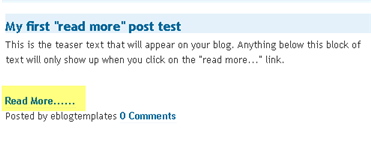
Here’s the live post with the “read more…” link properly working based on the text I used above in the post text area.
Additional Info
If you want to go back and update your old posts with this new “read more…” feature you can. Just go back and edit each post manually. Essentially you’ll need to paste in the <span class=”fullpost”> and </span> tags breaking apart the post into two parts.
For some posts, you might not want to use this feature at all. If that’s the case, just delete the <span class=”fullpost”> and </span> tags from within your new post text area. Then your new post will show up entirely just like it used to before you implemented this hack. Enjoy!
Ready to super charge your blog? Check out our professional premium blogger templates or make money by joining our blog affiliate program!
If you like this post then please consider subscribing to our eBlog Templates RSS feed. You can also subscribe by email and have new templates and articles sent directly to your inbox.
Trackbacks
- No case to answer – Suarez | Manchester United Schedule and Fixtures on November 8, 2011
- Fletcher doubtful for Scotland | Manchester United Schedule and Fixtures on December 9, 2011
- 10 most wanted essential Tricks Hacks Tips for blogger on April 9, 2012
- How "long" is your Home Page? | Blogging For Novice on May 3, 2013
- Top Blogger Hacks(Tips) of all time - Blogger Seed on November 23, 2013
- 10 most wanted Blogger tricks | E Tips Blog on December 15, 2015
578 Responses to “How To Add The Blogger “Read More” Expandable Posts Link”
Blogger Sponsors
- Improve Your Blog in 31 Days – Guaranteed
- Build a Better Online Business with WordPress
- Become a Blogger Just Reopened – 5 Days Only!
- Roadmap to Become a Better Blogger
- Free Image Hosting – Photobucket
- How to Install Google Analytics on Blogger
- Improve Your Google Rankings in One Easy Step
- 50 Excellent Blog Footers
- Free Instant Blog Logos
- Create Cool Images With a Wet Floor Effect Maker
 ads by google commented on
  huh commented on
  huh commented on
Very good information on this subject and excellent quality of the Website. Regards from Santiago de Chile
Its about damn time I found this.
I have been looking for this for about a week now.
Thank you very much!
Thanks David! This is awesome. The widget looks so much cleaner and more professional on my site now. Great tip!
Thanks for this post. Really useful. I’m going to be applying this to my blog
Great article. However I did find a simpler version [with screenshots] here: http://goo.gl/3FIh0
Very useful article, thank
Very Nice post for me and all who are searching for this one
Thanks very much brother you are genius
The widget looks so much cleaner and more professional on my site now.
hi, can you please help me? read more after I use, my blog page there readmore widened steadily, so the article on page cut off because read more
This did not work for me. I followed what you said exactly and it bombed. First it wouldn’t accept the double part of the code, saying it wasn’t well formed. I tried following a similar tutorial and it still doesn’t work. I’m using a customized Blogger template, and it won’t do anything with page breaks 🙁 I thought this would be easy to correct, what a drag.
HI. I’m trying to add this hack to my blog but it does not work.
The whole post dissapears – even the title and the other stuff. Like it wouldn’t be posted.
In my blog there are two places with
"

 "
…and each one is followed by
not by
Like for example:
So how to edit MY code to make posts expandable?
HI. I’m trying to add this hack to my blog but it does not work.
The whole post dissapears – even the title and the other stuff. Like it wouldn’t be posted.
In my blog there are two places with
”
”
…and each one is followed by not by
Like for example:
So how to edit MY code to make posts expandable?
I’m sorry I’m trying to put it the right way.
HI. I’m trying to add this hack to my blog but it does not work.
The whole post dissapears – even the title and the other stuff. Like it wouldn’t be posted.
In my blog there are two places with
…and each one is followed by not by
Like for example:
So how to edit MY code to make posts expandable?
not code nor quote work.
I don’t know how to post here with html examples vissible.
Web Design Company is professional website design company in Hong Kong, web design service provider in hong kong.
本店專門經營國際標淮925純銀首飾,包括頸鍊、手鍊、耳環、戒指、手鐲及腳鏈,純銀,產品主要來源包括台灣、泰國、意大利及香港。產品款式以時尚簡約為主,有些首飾會鍍上白金,黃金或玫瑰金,令首飾看上更有光澤及高貴。配石方面本店採用方晶鋯石,閃亮度能和天然鑽石媲美。
http://www.stansproduction.com
Stans Production 攝影門市及影樓設於荔枝角CEO TOWER,全新擁有三千呎的婚照攝影影樓,不同場景,不同風格,地方舒適,為客人提供婚宴攝影套餐,婚紗外景拍攝,攝影支援及後期制作等完善售後服務。
I really love this post, especially when you talk about quality comments. I really hate it when someone comments on my blog with something like “cute outfit, want to follow each other?” because you know they are just after followers and not looking at building actual blogging relationships.
Great tip. I also like the way you integrate your ads nice site.
hi admin
the code is not working for me
i added the code as you described but not working please do help
Your generosity has helped others. May more blessings come your way!