
How to Install a Blogger XML Template
 This article was written to provide a step-by-step guide on how to correctly apply a new xml Blogger template to your blog. This process can be tricky depending on several factors (quality of the code in the new template, your existing widgets, etc) so you need to be careful when changing your template. Don’t worry though, just follow our step-by-step instructions below and we’ll hopefully get you through it without much pain. 🙂
Many people make the same mistake when installing a new blogger template. Most problems when installing a new template are caused by the blogger widgets (Page Elements) that you’ve spent time setting up in your previous template. Almost all Blogger templates available for download on this site are in the new Blogger xml template format so if you’ve downloaded the template from us, it’s going to be much easier to follow our instructions.
Step #1 – Backup Your Current Template
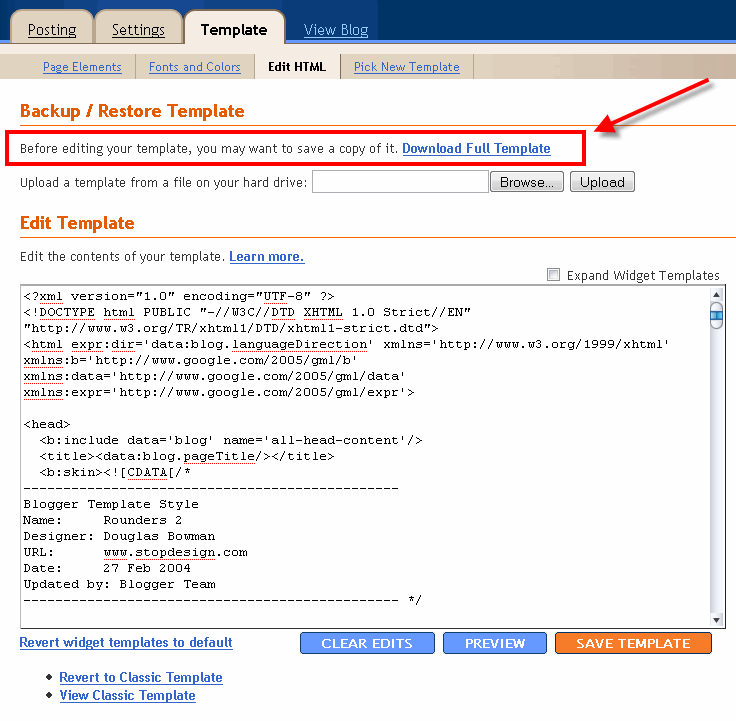 Backup your current Template just in case you make a mistake. This is very important so you can always go back (click on the screenshot to the left to see exactly how this is done). You’ll want to navigate to the “Template” => “Edit HTML” section of Blogger and then look for the “Before editing your template, you may want to save a copy of it. Download Full Template“. Click on the “Download Full Template” and save it somewhere easy to find later on your computer. We are not responsible for any mistakes you make in applying your new Blogger template. Once you have saved this .xml file onto your computer, move on to step #2.
Step #2 – Take a Screenshot of Your Page Elements
 This next step isn’t necessary but I like to do it anyhow. Take a screenshot of your “Page Elements” page just so you know exactly what widgets (Page Elements) you had before applying the new template (an example of the exact page you should take a screenshot of is in the image to the left). If you blow away all your widgets and you don’t remember which ones you had, this screenshot will at least help you remember. If you’re unsure as to how to take a screenshot, then check out this quick tutorial (MS Windows).
Step #3 – Upload Your New Blogger Template
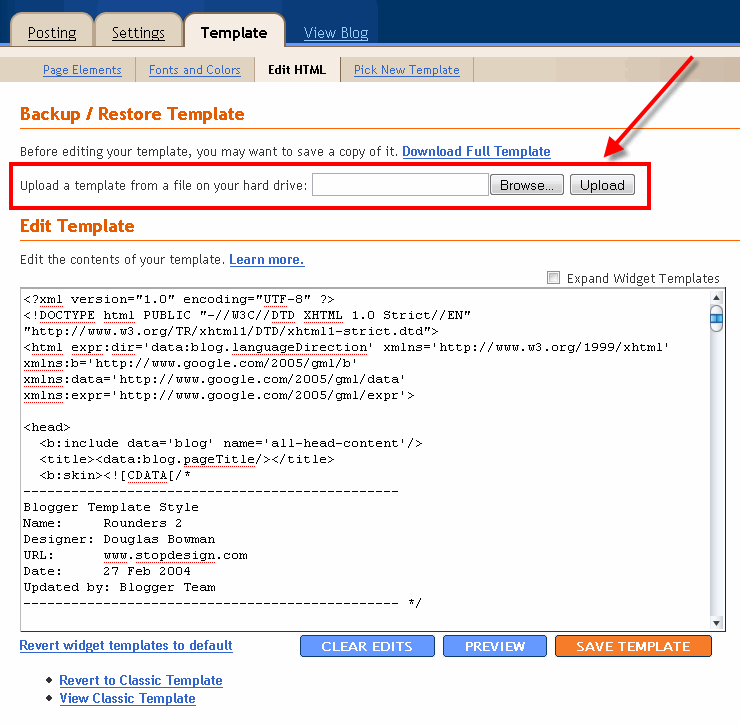 Now it’s time to upload the new Blogger template from your computer. You’ll want to navigate to the “Template” => “Edit HTML” section of Blogger and then look for the “Upload a template from a file on your hard drive:” text. To the right of that you’ll see two buttons. First, you’ll click on “Browse” and navigate to the new .xml Blogger template on your computer and click “Open”. Then you click on the “Upload” button and cross your fingers.
At this point Blogger is attempting to apply the new .xml Blogger template to your blog. After it’s done, you’ll get a message stating that the upload and new template was applied successfully (in that case you’re done!) or more likely in my case, you’ll get a red error message that states something like:
Widgets are about to be deleted
Please confirm that the following widgets should be deleted. All the widgets’ configuration data will be lost.
- Text1
- BloggerButton1
- Poll1
- Profile1
Now if you’re like me, you don’t want to lose all those widgets (Page Elements) you spent lots of time configuring and arranging on your blog. If you don’t care and really don’t have anything you’ll be upset losing, then go ahead and click on the “Confirm and Save” button that looks like this:

Just remember, that you’ll need to re-add any page elements that you had previously setup in your old template. If they were simple or just recently added then I’d recommend just re-adding them instead of having to follow the next steps. If you decide you want to keep your widgets (Page Elements) then write down (or take another screenshot) the list mentioned above that are going to be deleted. You’ll use this list later when we migrate over your widgets.
Step #4 – Transfer Widgets to New Blogger Template
This process is going to take some careful cut and pasting within the template code so if you’re not comfortable doing this, then I’d recommend just ending on the previous step. First things first, click on the blue cancel button (you should still be on the previous step) that looks like this:

This will cancel out of the new Blogger template you were just trying to upload. Next, we’re going to essentially make a temporary placeholder for your widgets (Page Elements) within your current template. You should still be in the “Template” => “Edit HTML” section of Blogger so if you’re not, go back to that section.
You’re going to actually edit this template code now so pay close attention. Look for the following piece of code which is all the way at the bottom.
</body></html>
Now you’re going to replace that code with the following bit of code:
<b:section id='widgets-placeholder' showaddelement='yes'/></body></html>
Save your template and you’ll see this message (which is a good sign):

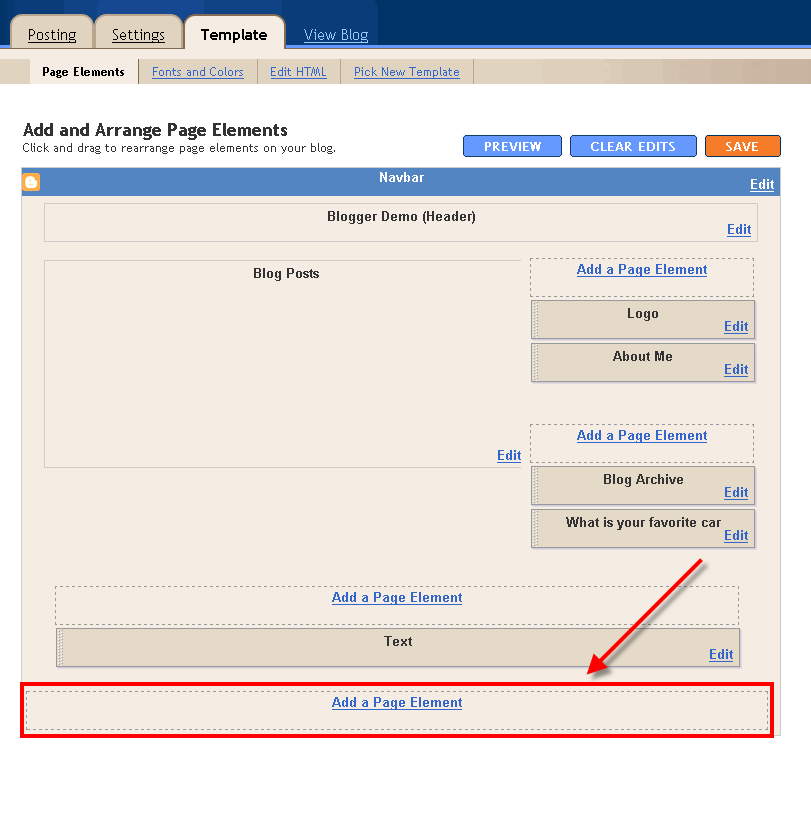 What did we just do? We created a brand new widget (Page Element) in your current Blogger template so we can move all your widgets over to keep them safe! Next navigate over to the “Template” => “Page Elements” section of Blogger and you’ll see a blank new footer section.
Drag all your widgets (Page Elements) that were going to be deleted (we wrote them down or took a screenshot in step #3). The order doesn’t really matter as long as you’ve moved them all down into the widget (top image on left). After you’re done, it should look something like this (bottom image on left):
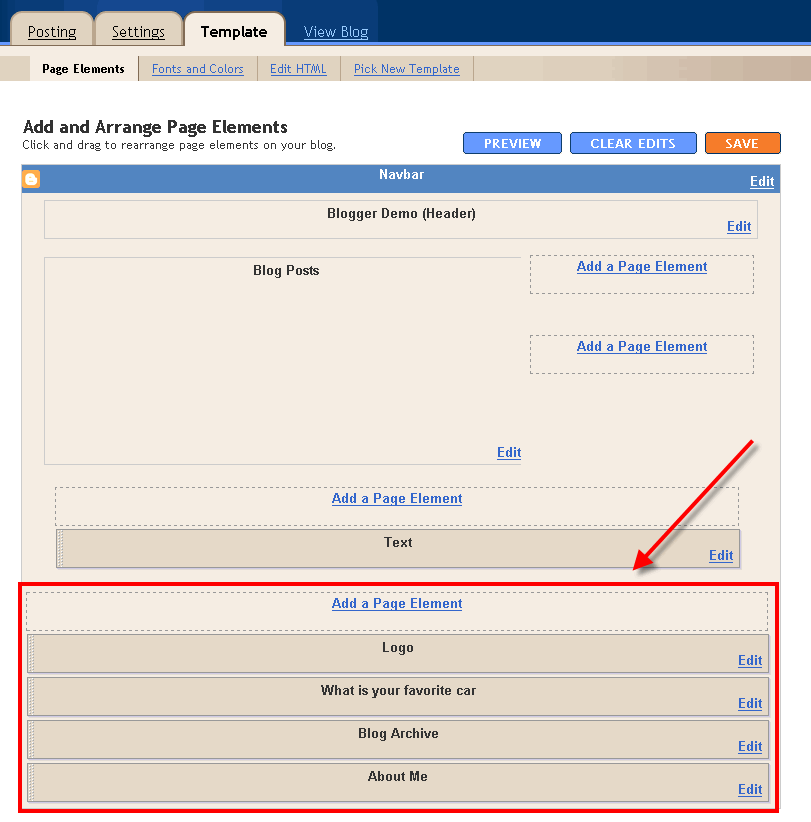 Now click on the “Save” button and the temporary placeholder for our widgets will be saved. We’re not done quite yet but if you’ve gotten this far already you’ve done great! The hardest part is over. Now we’re going to copy the widgets we just protected over to your new template. Hold off on that bathroom break and let’s keep going.
Next, go back to the “Template” => “Edit HTML” section of Blogger and scroll down in the template code and look for the line of code you added before:
<b:section id='widgets-placeholder' showaddelement='yes'/></body></html>
There should now be a bunch more code in between it which will look something like this:
<b:section id='backupwidget' showaddelement='yes'><b:widget id='BloggerButton1' locked='false' title='' type='BloggerButton'/>

<b:widget id='Poll1' locked='false' title='What is your favorite car' type='Poll'/>

<b:widget id='BlogArchive1' locked='false' title='Blog Archive' type='BlogArchive'/>

<b:widget id='Profile1' locked='false' title='About Me' type='Profile'/>

</b:section></body></html>
This is a list of all your widgets (Page Elements) that we just moved into the footer. You want to select all this code and copy it. We’re going to paste it into our new Blogger template code which will complete the transfer safely.
Now open your new Blogger template xml file in a text editor (you can use Notepad, just right click -> Open With -> Choose Notepad). Once you have it open, scroll all the way down to the bottom of the code and look for the following code:
</body></html>
You’re going to replace this code with the new code you just copied above. Make sure you only replace that one bit of code otherwise you might run into some problems. Save your new Blogger template and you’ve finished transferring your widgets (Page Elements) into the new Blogger template!
Now after all that work just to save your precious widgets, let’s hope the new template works ok in Blogger. Go back to step #3 above and upload your new template like you attempted to do before. If all goes well, your new template will properly save and your blog will be updated!
Step #5 – Move Your Widgets Back To Their Original Spots
I’m assuming your new template installed without and problems and you’re ready to move your widgets (Page Elements) back to their original spots. This is just the reverse process of what we did before by going to the “Template” => “Page Elements” section of Blogger and moving them out of the footer and back into the sidebar (or wherever you originally had them in your old template).
After you arrange them to your liking, make sure to save and view your blog. If all went well then your blog should be looking the way it did before the new template was applied (well, except for the new beautiful design which is the main reason for this hassle in the first place right?). 🙂
Summary
Congratulations on adding a new custom Blogger xml template to your blog! The whole process should have taken anywhere from 15 minutes to 1 hour depending on your experience and comfort with blog template code, the code quality of the new template, and the number of widgets your blog currently has. Blog designs shouldn’t have to change very often so hopefully this is a one-time process for you. If not, I recommend you bookmark or add this page to your favorites so it’s easy to find the next time you decide to change Blogger templates.
Still Having Problems?
Problems or errors during this procedure? Unfortunately, the Blogger xml templates are very picky and don’t always work with your blog. This can be because of several reasons so it’s not always easy to resolve. Sometimes the best way is to just delete one widget at a time and see if that resolves the issue. Blogger doesn’t give you very good error messages to act on so sometimes it’s a shot in the dark.
If you’ve got a specific case you’d like to ask about, please post a comment below. I will respond and help if possible. Your specific problem might help others address their issue as well.
Ready to super charge your blog? Check out our professional premium blogger templates or make money by joining our blog affiliate program!
If you like this post then please consider subscribing to our eBlog Templates RSS feed. You can also subscribe by email and have new templates and articles sent directly to your inbox.
Trackbacks
- WP-Polaroid – Blogger Template – eBlog Templates | Template Boss | Gallery of the the Best Templates on July 25, 2009
- Ilmaisia sivupohjia bloggeriin : Ezka on November 25, 2010
- 101 sivupohjaa bloggeriin : Ezka on November 25, 2010
125 Responses to “How to Install a Blogger XML Template”
Blogger Sponsors
- Improve Your Blog in 31 Days – Guaranteed
- Build a Better Online Business with WordPress
- Become a Blogger Just Reopened – 5 Days Only!
- Roadmap to Become a Better Blogger
- Free Image Hosting – Photobucket
- How to Install Google Analytics on Blogger
- Improve Your Google Rankings in One Easy Step
- 50 Excellent Blog Footers
- Free Instant Blog Logos
- Create Cool Images With a Wet Floor Effect Maker
 ads by google commented on
  huh commented on
  huh commented on
Thank you so much for the step by step process..
It didn’t save my widgets so they’ve all been deleted!!! 🙁
Thank you so much for this fantastic guide – I havent finished all the steps yet – but so far this has all worked out – this is the ferterst I have ever come when it comes to changing over template without messing things up!
heyy , can i know y when i dload my template , it doesnt work like this ;
Your template could not be parsed as it is not well-formed. Please make sure all XML elements are closed properly.
XML error message: Content is not allowed in prolog.
please help me . pleeeseeeeeeeeeeee , im begging .
help me please, i don’t can blog xml..
I just found out how to solve my problem, which seems like a lot of others’ problem also. The error message was:
“Your template could not be parsed as it is not well-formed. Please make sure all XML elements are closed properly. XML error message: Content is not allowed in prolog.”
And the solution was that copying and pasting the html was not possible. It is meant to be saved to a file on your computer and then uploaded rather than pasted. So wherever you are getting your new html, just save that file to your computer. Then on your blogger “edit html” page in your “backup/restore template” area, there is a place to upload. Just upload the file you saved earlier and it replaces your html. That was the solution in my case anyway. Hope it helps.
Hi David 🙂
Congratulations, you have beautiful templates!
I wanted to upload one of them as well, but it shows this:
We were unable to save your template
Please correct the error below, and submit your template again.
The new widget id “Recent-Comments-Widget” is invalid for type: Feed
What can I do?
Thank you for your help 🙂
Lady Elena
I have gone through the instruction which very straight forward and easy to undersatnd.. I replaced the banner codes,adsense and the 125 x 125 bannersinfo as well. I am trying to upload the Blue version of DUO.
I elected to not have the widgets installed I will rebuild at a later time.
I get the following errors:
We were unable to preview your template
Please correct the error below, and submit your template again.
Your template could not be parsed as it is not well-formed. Please make sure all XML elements are closed properly.
XML error message: The element type “div” must be terminated by the matching end-tag ”
“.
Thanks for all your help in advance
Mike
Thank you Mayjah!!! (June 25, 2008)
You are the only one who came up with a solution to my Blogger problem.
‘Extract’ – it is that easy!
Amazing! Fantastic tutorial. I have some old school programming knowledge and so I really liked how you explained what we were doing (creating a placeholder) so clearly. In the end, I hated my new template and switched back but still on the hunt and have you bookmarked…
Hey great buddy! I was looking for html parser so I could paste my adsense code on my XML template. DO you know html parser tool online?
Hi,
I tried to update my blog with new template downloaded from some site but am getting an error message like
“Your template could not be parsed as it is not well-formed. Please make sure all XML elements are closed properly.
XML error message: Content is not allowed in prolog.”
reply
Thank you for this nice article which got most of the new template on the site, but iseem to have lost some of the original features shown on the demo, somewhere on the way ( Followers, blog archive and so on)
Where did I go qrong and what do I need to do to retrieve them from teh new template (http://zinfolio-cahayabiru.blogspot.com/)
thanks for your attention and the very good explanantions.
the blogger navigation bar doesn’t appear in an xml template, is it? i actually want it and i’m not sure why it doesn’t appear on my blog. please help me.
otherwise ,this was a useful article!
hi , need help installing css template in blogger
how can i download this template? I can’t see the html code instead it directs me to another website.please help… I’m a newbie…..
How to add sitemap xml file to blog? please guide the steps.
Thank you I will try this
Hi,
I tried to update my blog with new template I made myself, but I keep on getting this message:
“Your template could not be parsed as it is not well-formed. Please make sure all XML elements are closed properly.
XML error message: Content is not allowed in prolog.”
Is this because of mistakes in my css codes or is blogger being stingy and not letting us upload our template of choice? 🙁
Hello;
thanks for you explication. But.. if you have twoo file in the template like : “TheCars without slider.xml & TheCars.xml” ?!!
In blogger; you can put ONLY one file..
So for you are possible to put : ” TheCars without slider.xml & TheCars.xml ” .. o_O
Thanks for all;
Pepper
Thanks a lot. 🙂
Thank you i am very happy, it is working yipeee