
How to Setup FeedBurner on Blogger
Blogger is a great blogging platform which almost anybody can use. If you already have a Google account, it’s easy to setup (if not you just need one) and start blogging within minutes. The downside of using Blogger is the lack of built in features that are in my opinion essential to have. I’m going to share with you some of my favorite free Blogger add-ons that I highly recommend using. The first of the bunch being FeedBurner
Step #1 – Setup a FeedBurner Account
FeedBurner’s free rss service (now owned by Google) is very powerful. It allows you to place an rss image like the ones you see below on your blog so your readers can easily subscribe to your blog content. FeedBurner also offers a way for your readers to subscribe by email so everytime you post, an email will automatically get sent to them. Other features include seeing how many blog subscribers you have , which posts are most popular, as well as many other rss feed statistics. You’ve probably seen images like these on websites and especially blogs. This is what they are using. 
 Create your free account now.
Step #2 – Create Your Feed
The main piece of information you’ll need when setting up your FeedBurner account is your original blog feed url. All blogs automatically come installed with a feed but nothing is really done with it. That’s where the magic of FeedBurner comes in. Your feed url will look something like this:
https://yourblognamehere.blogspot.com/feeds/posts/default
https://yourblognamehere.blogger.com/feeds/posts/default
Feedburner offers auto discover so you don’t even need to figure out your feed url. Just enter your Blogger url right on their home page and it will automatically discover your feed. If you have more than one blog, it will list them all so select the blog you’d like to setup.

For bonus points and just for fun, paste the url into your internet explorer browser and watch what comes up. It’s basically the raw text and images from your blog posts. Pretty neat huh?
Follow the rest of the setup wizard and you’ll eventually come to the configuration page. Here’s where you want to select the extra features like “track item clickthroughs” and also check the “FeedBurner Pro” box. They used to charge $4.95 a month extra for this service but ever since Google acquired them, they offer these extra features for free. Why not take advantage of it?
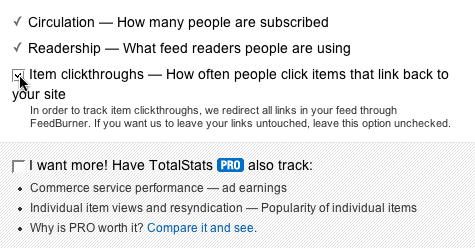
Click the Next » button to finish the setup process and enter the feed management interface. Now you’re now ready to make your FeedBurner feed available on your Blogger site!
Step #3 – Point Your Blogger Feed to FeedBurner
Once you setup an account on FeedBurner, you’ll need to make sure all feed traffic for your blog content goes to your FeedBurner feed. This helps make sure your FeedBurner stats are more accurate and even any existing subscribers to your ‘Original Feed’ are routed through FeedBurner.
-The first step is to get the url of the new feed you just created. When you setup your Feedburner account, it asked you for a name of your first feed. For example, our feed on eBlog Templates looks like this:
https://feeds.feedburner.com/eblogtemplates
Here’s the screen where you’ll find your new feed:
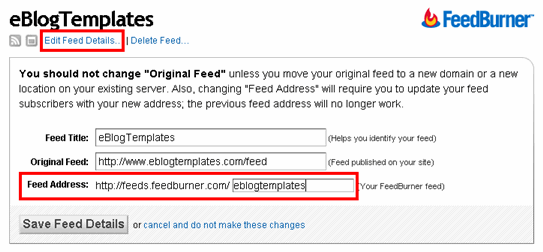
Once you click on the “edit feed details”, you’ll see this screen. Notice what I highlighted in red? That’s the feed url you need to copy and save.
-Now you’re going to log into your Blogger account and head on over to the “Settings” => “Site Feed” tab.
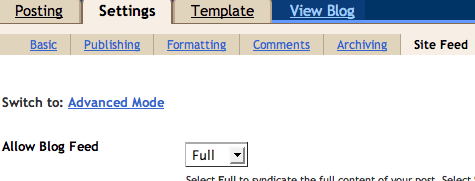
Scroll down until you find the “Post Feed Redirect URL” text box and enter the FeedBurner feed url you wrote down earlier. It will look something like this:
https://feeds.feedburner.com/eblogtemplates
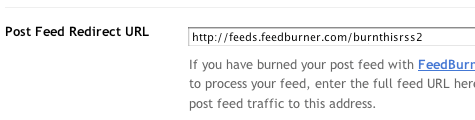
Make sure you type in your entire feed address including the “https://” portion otherwise you’ll have problems later. Click the “Save Settings” button and you should see the message “Settings were Saved Successfully”. Now Blogger will redirect all feed traffic for your blog to your FeedBurner feed which is exactly what we want!
Step #4 – Promote Your FeedBurner Feed on Your Blog
So now that everything is wired up properly we just need to promote it using one of those cool rss buttons on our blog. FeedBurner calls these icons chicklets (cute huh) so that’s what we’ll call it. Switch back over to your FeedBurner account and click on the “Publicize” tab.

Then on the left side find and click on “chicklet chooser” and select one of the icons which will end up on your blog.
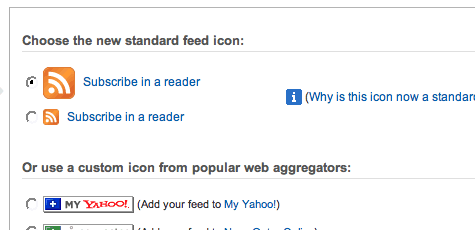
Then scroll down to the bottom of the page and click on the drop-down. You’ll want to select “Blogger” to add the chicklet as a widget to your blog.

After you click the “Go!” button, Blogger will open in a new window and you’ll need to follow the prompts to continue to add the new widget.
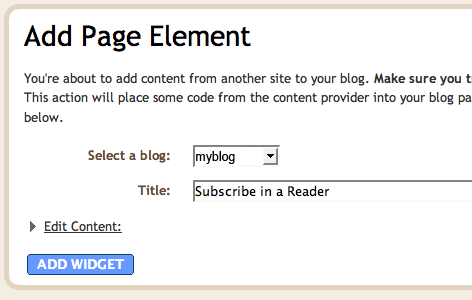
Once you click on “Add Widget”, it will take you to your Blogger page elements layout where you can arrange the new FeedBurner widget. Save your layout and you’re done! You should now have a cool-looking rss feed icon on your blog where anyone can easily subscribe to your blog. Remember to login to FeedBurner often to check out your stats. You can accurately see the number of subscribers and also get a good idea of what people are reading. It helps you decide the types of things to write about in the future!
Bonus Step – Setting Up the Subscribe Via Email Option
At this point you might just be happy with the rss FeedBurner widget but I’d recommend also giving your readers the option to subscribe via email as well. Not everyone uses rss and email is much more familiar to everyone so why not give them both options?
By default, the email option is not turned on within FeedBurner so let’s go switch it on now. Navigate over to your “Publicize” tab and then click on “Email Subscriptions”. Here you’ll scroll all the way down to the bottom and then click the “activate” button to turn it on.
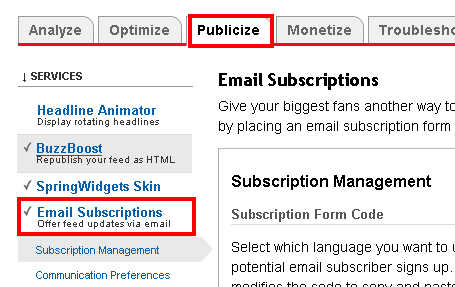
This step didn’t add anything to your blog it just turned on the feature so you are able to use the email subscriptions option. Next, you’ll need to copy the email box code and paste it somewhere on your site. You can also use the handy Blogger widget generator which will save you the hassle of mucking with your template code, but most newer templates that you download require you to tweak the template code itself.
Now that you’ve got the basics setup, I recommend spending some additional time browsing around FeedBurner’s interface because there’s lots of other cool options for you to configure. The best things in life are always free. 🙂
Ready to super charge your blog? Check out our professional premium blogger templates or make money by joining our blog affiliate program!
If you like this post then please consider subscribing to our eBlog Templates RSS feed. You can also subscribe by email and have new templates and articles sent directly to your inbox.
Trackbacks
- My CC » Beautifull Blogger Template —-Ads Theme on December 7, 2009
- The Blog Checklist – Part 1 « on December 16, 2009
- Been Building Something – Muskblog on January 29, 2013
97 Responses to “How to Setup FeedBurner on Blogger”
Blogger Sponsors
- Improve Your Blog in 31 Days – Guaranteed
- Build a Better Online Business with WordPress
- Become a Blogger Just Reopened – 5 Days Only!
- Roadmap to Become a Better Blogger
- Free Image Hosting – Photobucket
- How to Install Google Analytics on Blogger
- Improve Your Google Rankings in One Easy Step
- 50 Excellent Blog Footers
- Free Instant Blog Logos
- Create Cool Images With a Wet Floor Effect Maker
 ads by google commented on
  huh commented on
  huh commented on
Hey there! Excellent blog, guys. Simply awesome. Very useful advice and easy step-by-step directions. I subscribed to your RSS feed and gave you a “thumbs up” on Stumble, as well as wrote a review.
This was SO easy to follow. Thanks!
Thank you for this perfect, easy to follow post. I love it!
Thanks very much for the info..it really helped me
really it’s good topic thanks a lot for explain that
Thank you so much! I’ve been trying to figure this out for so long! THANK YOU!
Thanks you so much! This novice blogger would never have been able to add Feedburner without your exccellent cues.
oh my goodness…this was a lifesaver. I have been reading for days trying to figure this out…it’s obvious that I’m not a techie by any means. This was an excellent tutorial – thanks again!
thanks a lot. that is a very clear explanation.
After roaming round the pages looking for answers, your blog was like an oasis in the desert!! Thank you!
OMG!!!!!! Thanks soooooooooooo much! I just started my blog and this was a godsend! Step-by-step and easy to understand and use. 🙂
Thanks for this post. It helped me a lot to publish my own feed.
Great information.very useful for me.Thanks..
Thank you so much! Your instructions were very easy to follow. Works great!
thanks for this valuable article, i have implemented in my blog http://www.ubuntubuzz.com , visiting us 😛
Thanks sir he is working thank you
Awesome, thanks for the step-by-step.
Now u can share links in feed to social networking sites. But only twitter available now
Nice tips on feedburner setup. Using these tips, i activated feed subscription and Email subscription on my blog. to see just visit
http://www.reviewexperts.blogspot.com
Wonderful article. Its very informative and useful for my readers. Thanks
Thanks for sharing such a useful information. I was always so much confused about this feed burner even I tried many times to install this thing but I failed to do so…But today I finally did it. But I would really appreciate if you offer some free templetes also 🙂
This is fantastic information – thank you so much!
such a great post and good info.
I never could have set Feedburner up on my blog without these step-by-step instructions. Thanks so much for the post!
Very useful info step by step.
And I am done all the steps to my blog 🙂
Many Thanks.
Thanks so much! These were easy-to-follow directions and it works perfectly! 🙂
This have been very helpful. The directions are clear and I can be sure I have done the right thing. Thank you for sharing this information!
I just joined this group, I hope it helps my blog. Thank you..
Thhask, you are verry good.
thank you thank you thank you !!!! this was a huge help I been having trouble understanding other websites but your instructions I understood perfectly.
Thanks a lot! I was looking for this whole afternoon in fb page but it was easier let Google take me here.
Good content.
well ,it really is useful to me , Thanks for doing such a great job!
Thank you!!! Very helpful:))))
its too good for me
i am cool and its good for me
thank you dude.. very helpfull 🙂
This is very helpful! Thank you so much 🙂
Thanks! for your article about feed burner… plz add more details about how to check my feeds on wordpress.
Thanks, I was actually pull my hair out especially after a screen popped out saying I would have to change some funny setting. God Thanks!
@David
Hello,
My blog still new should I use feedburner now?
By the way, thank you for step by step tutorials.
Its helped me a lot.
Wow, this just helped me so much! I just couldn’t figure it out, how to set up the Email subscription tool, but now it’s all working, thank you!
Thanks for this nice information.
Well applying these steps, I finally setup feed-burner for my new blog.
Very helpful
awesome article. thnks for sharing this post. suggest how to imporve http://www.sarkarinaukrifarm.com site traffic.