
Isn't this free template worth at least $1? |
|
|---|---|
| Your support allows me to continue to provide free templates. Any donation is appreciated. |


Grey Press Template
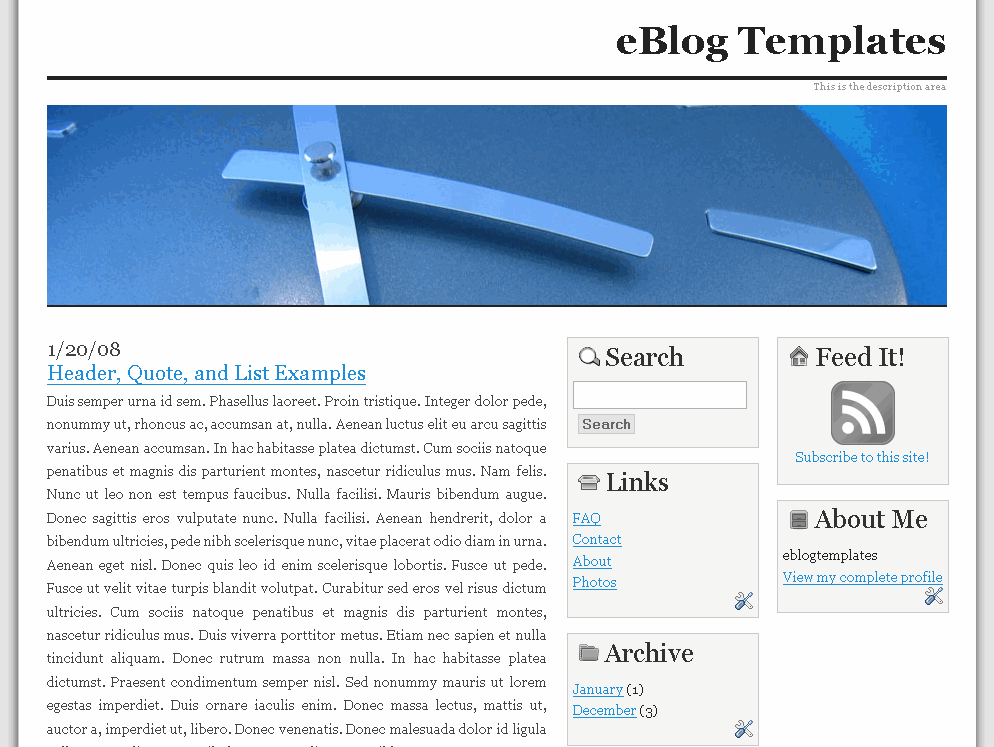
Here’s a new template based off the original Cutline WordPress theme which is a sophisticated and very functional Blogger template. The best part is it’s extremely flexible and can be used for any type of blog. It allows you to switch out the header image which means the type of theme you can have is unlimited. It also comes with an integrated search box, rss feed icon, and 3 columns for adding any widgets you like.
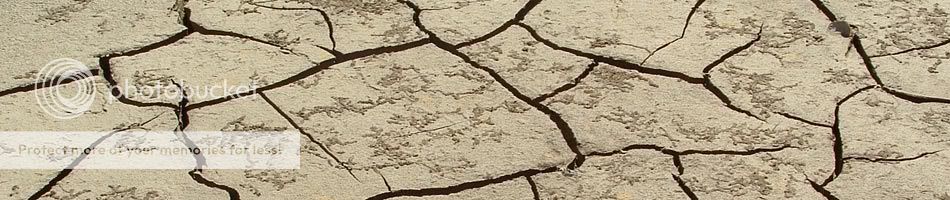
Here are 10 cool header images the original author has provided for you but like I said, you can swap out and use any image you already have. Just make sure the image you use is 900px in width by 200px otherwise it will look funny. The default image is the blue clock.








How to add a different header image
So if you want to either use one of the other header images above or insert your own 900px in width by 200px image, you’ll need to follow these steps.
Edit the header page element and select “Image from the web” and NOT “From your computer” otherwise the header image will come out funny.
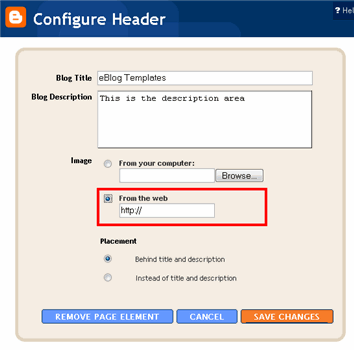
Next enter the actual image url you want to use (it needs to be on the web already like one of the 10 images above). If you decide to use one of the image above, just click on it to enlarge and copy the url from your browsers’ address bar. It will look something like this : https://i254.photobucket.com/albums/hh92/eblogtemplates/greypress/pedestrians.jpg
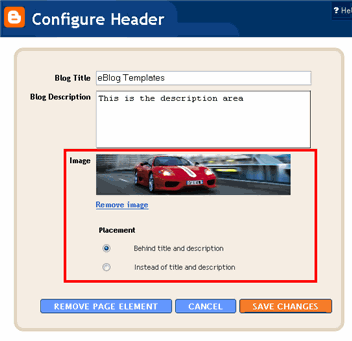
Paste that into the “image from the web” text box and then hit save. The new image should be loaded up and you’re good to go!
Thanks to Dan S for converting this cool WordPress theme into a new Blogger xml template! Also many thanks to Pearsonified for creating the original design!
Ready to super charge your blog? Check out our professional premium blogger templates or make money by joining our blog affiliate program!
Want to make your blog stand out from the crowd? I recommend giving your newly downloaded Blogger template a unique and personalized look. Read our Free Blogger Header Images article and find yourself a great custom header image!
If you like this post then please consider subscribing to our eBlog Templates RSS feed. You can also subscribe by email and have new templates and articles sent directly to your inbox.
Trackbacks
29 Responses to “Grey Press”
Blogger Sponsors
- Improve Your Blog in 31 Days – Guaranteed
- Build a Better Online Business with WordPress
- Become a Blogger Just Reopened – 5 Days Only!
- Roadmap to Become a Better Blogger
- Free Image Hosting – Photobucket
- How to Install Google Analytics on Blogger
- Improve Your Google Rankings in One Easy Step
- 50 Excellent Blog Footers
- Free Instant Blog Logos
- Create Cool Images With a Wet Floor Effect Maker
 ads by google commented on
  huh commented on
  huh commented on
Hi, I’ve just downloaded Grey Press, however how do I delete the existing widgets that come with the download?
Look forward to your reply.
Thank you
Miriam
Hi Miriam, once you install the template you can delete the existing widgets from the page elements screen. Just click edit on the widget you want to delete and then click “remove page element”.
Hi David,
Thank you for your quick reply, however that’s the problem the particular widget I want to remove is not showing up on the page element screen. I’ve used both Firefox and Safari to view and it doesn’t show up. Is there someway I can delete it from the html template itself? and if so what can I delete? I want to remove the Feed It Widget.
Thank you and look forward to your reply.
@Miriam, Blogger has a bug so the scroll bar at the bottom of the “edit html” page no longer appears. That’s why you can’t see the widget “edit” link. Before you edit the code, make sure you check the “Expand Widget Templates” checkbox which will reveal all the code in the textbox window. Then make sure to backup your template before trying the following change. Search for the phrase “Feed It!” within the code. Once you find that section, you’ll want to delete the entire section from the “FeedIt” tag to “end FeedIt”. Save and look at your Blogger site.
David,
I downloaded and installed the theme and love it. The one problem that I am running into is that I have a team blog and I can’t get the name of the team member who wrote the post to appear. I’ve tried pasting in XML from other templates, adding it in the Blog Posts Page Element, moving it above the post, and so on, but I can’t get it to work. No matter what I put in besides number of comments and labels, it won’t change (and if I delete comments and labels, it doesn’t take those away either. Any help would be appreciated! Thanks!
@Beau, you need to add this bit of code into the template to show the author information:
b:if cond=’data:top.showAuthor’
data:top.authorLabel/
data:post.author/
/b:if
Make sure to add the “<" and ">” at the beginning and end of each line.
If you deleted some blog post page elements and things still showed up, you probably deleted the wrong section. 😉
David, thanks for the code, it worked like a charm!
David you’re a star 🙂 I got rid of the feed it box.
One more question 😕 how do I change the font size of the headers in the boxes? can’t seem to change it through ‘layout’ fonts & sizes section?
Look forward to your reply.
Cheers
@Miriam, If you edit the template code you can change the font size. You’ll want to search the template for “h1.title” and then right above that is “h1”. Change the “h1” font-size: 4.0em to 3.5em or something to make it smaller.
thank you David for all your help 😀
David,
I am using blogger to point to my site and I don’t want the nav bar at the top. Can I get rid of this?
This is such a lovely template!
Lisa, yes you can remove the nav bar. Read this post about how to remove the blogger nav bar.
thanks David 😀 I too have removed the NavBar 😆
Hi David, I’ve noticed when adding logos etc via html element that it doesn’t center the logo within the box? I probably haven’t explained it right but if you go to the website you’ll know what I mean.
Thank you
also David, re your comment previously regarding changing header size of the boxes – I have followed your instructions re H1 to no change – is there something else I need to do, at the moment the heading are huge. Thank you kindly
hello David. This is the template that I liked the most cos its simple. It’s actually running online for now but my problem is the time I wrote the post and the quick edit option is not visible when in fact I checked those when editing my Blog Posts. Those didn’t show up despite being checked. Hope you can help me with this. Thanks and more power
@Marie, the quick edit link code must not be included in the template. Sometimes some of the templates submitted to our site leave it out on purpose or just forget to add it in. You’ll need to edit the template code and add it. I don’t know where off hand so I won’t be of much help. 🙁
Hi David, This is great work, totally love it, I just need one little bit of guidance, like Beau I want to use this for a Team blog and want to display the Authors name, I see you comment re
b:if cond=’data:top.showAuthor’
data:top.authorLabel/
data:post.author/
/b:if
but try as a I might I can’t figure out where to insert this code, could you expand on your advice?
Thanks, G
I like this one David, nice and simple. But the sub-heading is a bit too small to read. That’s the text under the black line across the top.
No worries, a friend fixed it for me. Anyone else that has this problem just substitute this line:
.description {float:right; color:hex (#999999); font-size:14px;}
in the section that starts:
#header-wrapper …
david, great template.
however i can’t seem to reduce the font size and style of my widgets!
if u could help with this and with getting a 3 collumn widgetized footer like yours, i’d love that!
Hi David, I’d love to install your template on my blogger site because it looks brilliant!!
but it seems that all of my already existing polls and surveys will be lost, is that right?
I’m using a blogger template just now.
Cheers,
Ela
Great template, but one question: how do I make the widget titles on the sidebars smaller–I mean “About Me” “Search” and so forth. That font seems kind of big to me.
thanks
Hi i love this template but i have a question. I want to change the font of this (i took a capture to explain well)
http://img512.imageshack.us/my.php?image=capture5zy0.jpg
Thanks.
Hi, I just loved this template, but when I try to install i receive this message
bX-bliced
and then i cannot install it.
what should i do then?
I like this template, but for some reason the comments don’t work on my blog now. 🙁 I’m pretty new to blogging, so I’m going to have to switch to something else.
Why do comments not work with this template??
Hello David,
Not sure if you check this but… I can’t seem to make my comments work either. Does anyone know how to fix this problem? Also, my links on the side-bar went away when I switched back to this template. Any help would be awesome!
Best,
Amber
Hi there,
a visitor of my blog (that uses the Grey Press template) has told me that the download link contains a trojan. Apparently this supposed trojan has been detected by Avast. Could you please check this with Avast?