
How to Install a Blogger XML Template
 This article was written to provide a step-by-step guide on how to correctly apply a new xml Blogger template to your blog. This process can be tricky depending on several factors (quality of the code in the new template, your existing widgets, etc) so you need to be careful when changing your template. Don’t worry though, just follow our step-by-step instructions below and we’ll hopefully get you through it without much pain. 🙂
Many people make the same mistake when installing a new blogger template. Most problems when installing a new template are caused by the blogger widgets (Page Elements) that you’ve spent time setting up in your previous template. Almost all Blogger templates available for download on this site are in the new Blogger xml template format so if you’ve downloaded the template from us, it’s going to be much easier to follow our instructions.
Step #1 – Backup Your Current Template
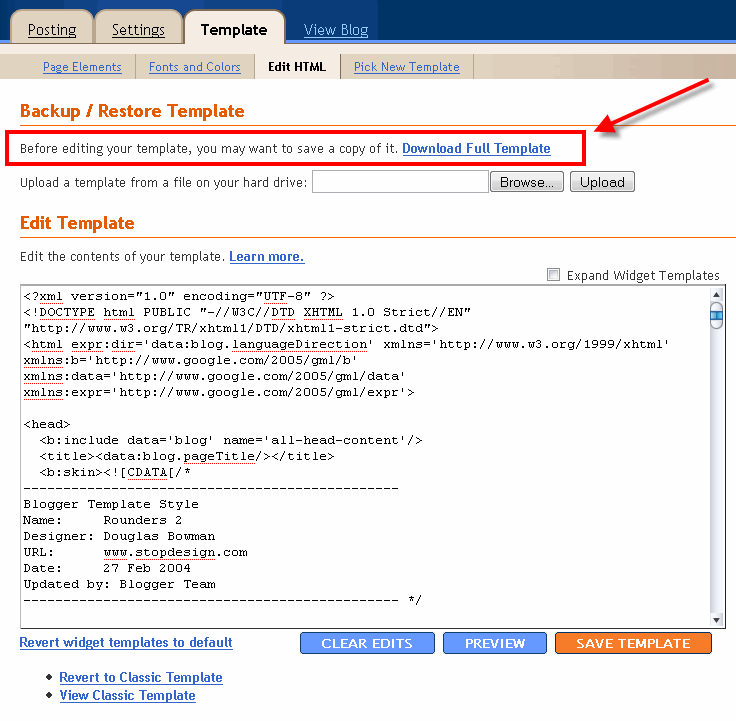 Backup your current Template just in case you make a mistake. This is very important so you can always go back (click on the screenshot to the left to see exactly how this is done). You’ll want to navigate to the “Template” => “Edit HTML” section of Blogger and then look for the “Before editing your template, you may want to save a copy of it. Download Full Template“. Click on the “Download Full Template” and save it somewhere easy to find later on your computer. We are not responsible for any mistakes you make in applying your new Blogger template. Once you have saved this .xml file onto your computer, move on to step #2.
Step #2 – Take a Screenshot of Your Page Elements
 This next step isn’t necessary but I like to do it anyhow. Take a screenshot of your “Page Elements” page just so you know exactly what widgets (Page Elements) you had before applying the new template (an example of the exact page you should take a screenshot of is in the image to the left). If you blow away all your widgets and you don’t remember which ones you had, this screenshot will at least help you remember. If you’re unsure as to how to take a screenshot, then check out this quick tutorial (MS Windows).
Step #3 – Upload Your New Blogger Template
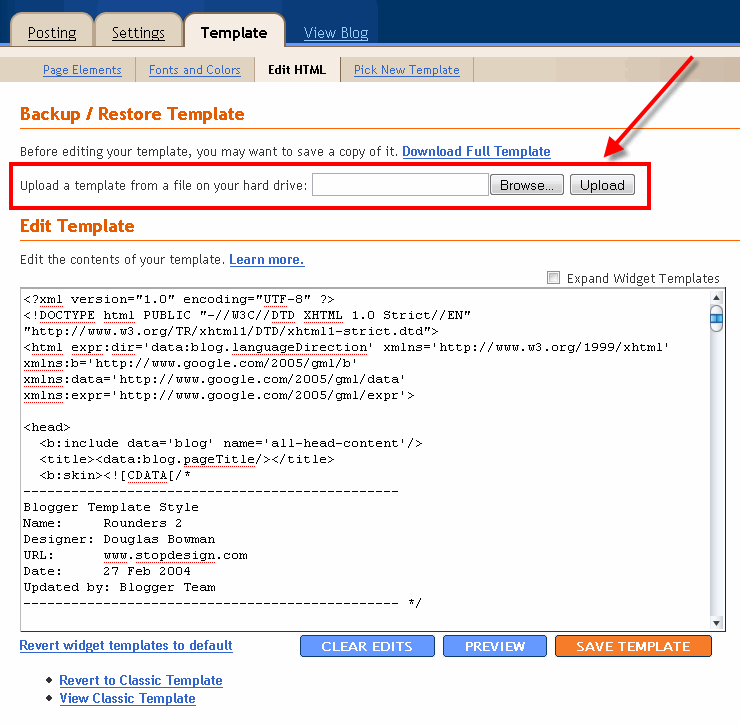 Now it’s time to upload the new Blogger template from your computer. You’ll want to navigate to the “Template” => “Edit HTML” section of Blogger and then look for the “Upload a template from a file on your hard drive:” text. To the right of that you’ll see two buttons. First, you’ll click on “Browse” and navigate to the new .xml Blogger template on your computer and click “Open”. Then you click on the “Upload” button and cross your fingers.
At this point Blogger is attempting to apply the new .xml Blogger template to your blog. After it’s done, you’ll get a message stating that the upload and new template was applied successfully (in that case you’re done!) or more likely in my case, you’ll get a red error message that states something like:
Widgets are about to be deleted
Please confirm that the following widgets should be deleted. All the widgets’ configuration data will be lost.
- Text1
- BloggerButton1
- Poll1
- Profile1
Now if you’re like me, you don’t want to lose all those widgets (Page Elements) you spent lots of time configuring and arranging on your blog. If you don’t care and really don’t have anything you’ll be upset losing, then go ahead and click on the “Confirm and Save” button that looks like this:

Just remember, that you’ll need to re-add any page elements that you had previously setup in your old template. If they were simple or just recently added then I’d recommend just re-adding them instead of having to follow the next steps. If you decide you want to keep your widgets (Page Elements) then write down (or take another screenshot) the list mentioned above that are going to be deleted. You’ll use this list later when we migrate over your widgets.
Step #4 – Transfer Widgets to New Blogger Template
This process is going to take some careful cut and pasting within the template code so if you’re not comfortable doing this, then I’d recommend just ending on the previous step. First things first, click on the blue cancel button (you should still be on the previous step) that looks like this:

This will cancel out of the new Blogger template you were just trying to upload. Next, we’re going to essentially make a temporary placeholder for your widgets (Page Elements) within your current template. You should still be in the “Template” => “Edit HTML” section of Blogger so if you’re not, go back to that section.
You’re going to actually edit this template code now so pay close attention. Look for the following piece of code which is all the way at the bottom.
</body></html>
Now you’re going to replace that code with the following bit of code:
<b:section id='widgets-placeholder' showaddelement='yes'/></body></html>
Save your template and you’ll see this message (which is a good sign):

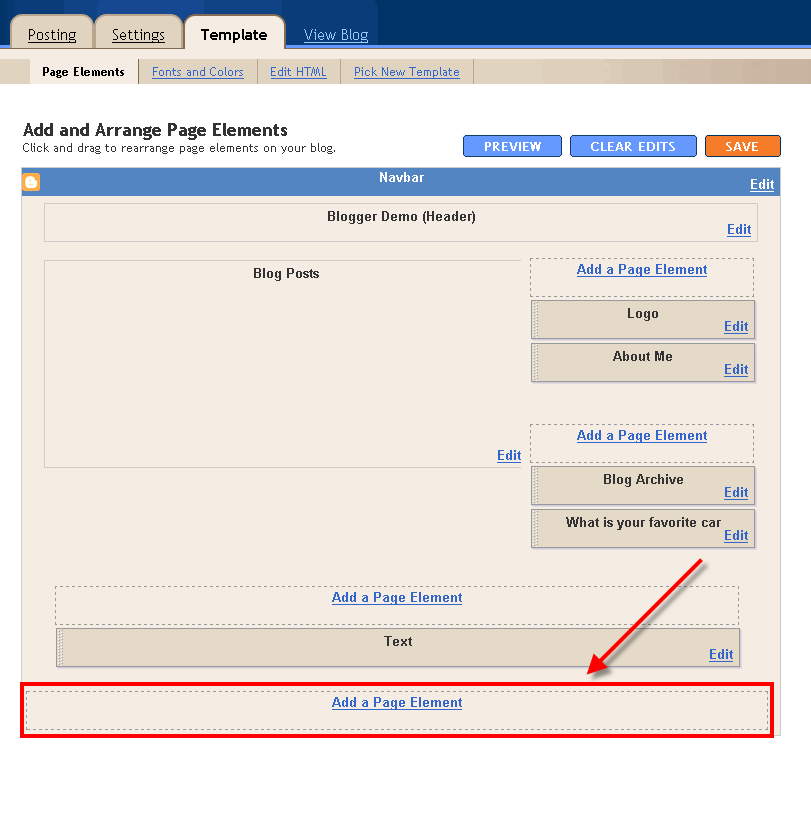 What did we just do? We created a brand new widget (Page Element) in your current Blogger template so we can move all your widgets over to keep them safe! Next navigate over to the “Template” => “Page Elements” section of Blogger and you’ll see a blank new footer section.
Drag all your widgets (Page Elements) that were going to be deleted (we wrote them down or took a screenshot in step #3). The order doesn’t really matter as long as you’ve moved them all down into the widget (top image on left). After you’re done, it should look something like this (bottom image on left):
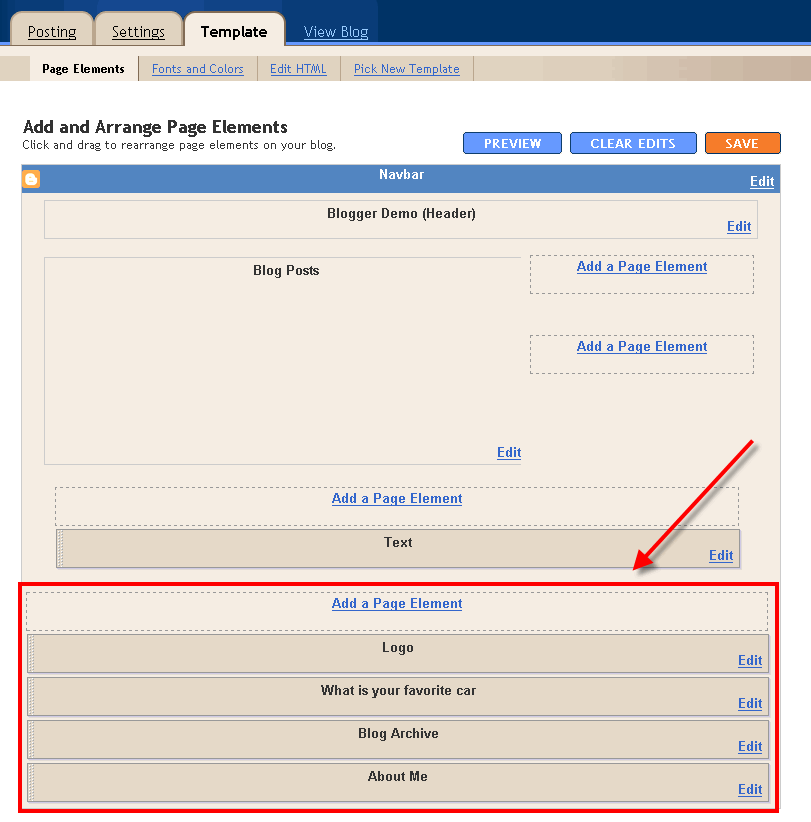 Now click on the “Save” button and the temporary placeholder for our widgets will be saved. We’re not done quite yet but if you’ve gotten this far already you’ve done great! The hardest part is over. Now we’re going to copy the widgets we just protected over to your new template. Hold off on that bathroom break and let’s keep going.
Next, go back to the “Template” => “Edit HTML” section of Blogger and scroll down in the template code and look for the line of code you added before:
<b:section id='widgets-placeholder' showaddelement='yes'/></body></html>
There should now be a bunch more code in between it which will look something like this:
<b:section id='backupwidget' showaddelement='yes'><b:widget id='BloggerButton1' locked='false' title='' type='BloggerButton'/>

<b:widget id='Poll1' locked='false' title='What is your favorite car' type='Poll'/>

<b:widget id='BlogArchive1' locked='false' title='Blog Archive' type='BlogArchive'/>

<b:widget id='Profile1' locked='false' title='About Me' type='Profile'/>

</b:section></body></html>
This is a list of all your widgets (Page Elements) that we just moved into the footer. You want to select all this code and copy it. We’re going to paste it into our new Blogger template code which will complete the transfer safely.
Now open your new Blogger template xml file in a text editor (you can use Notepad, just right click -> Open With -> Choose Notepad). Once you have it open, scroll all the way down to the bottom of the code and look for the following code:
</body></html>
You’re going to replace this code with the new code you just copied above. Make sure you only replace that one bit of code otherwise you might run into some problems. Save your new Blogger template and you’ve finished transferring your widgets (Page Elements) into the new Blogger template!
Now after all that work just to save your precious widgets, let’s hope the new template works ok in Blogger. Go back to step #3 above and upload your new template like you attempted to do before. If all goes well, your new template will properly save and your blog will be updated!
Step #5 – Move Your Widgets Back To Their Original Spots
I’m assuming your new template installed without and problems and you’re ready to move your widgets (Page Elements) back to their original spots. This is just the reverse process of what we did before by going to the “Template” => “Page Elements” section of Blogger and moving them out of the footer and back into the sidebar (or wherever you originally had them in your old template).
After you arrange them to your liking, make sure to save and view your blog. If all went well then your blog should be looking the way it did before the new template was applied (well, except for the new beautiful design which is the main reason for this hassle in the first place right?). 🙂
Summary
Congratulations on adding a new custom Blogger xml template to your blog! The whole process should have taken anywhere from 15 minutes to 1 hour depending on your experience and comfort with blog template code, the code quality of the new template, and the number of widgets your blog currently has. Blog designs shouldn’t have to change very often so hopefully this is a one-time process for you. If not, I recommend you bookmark or add this page to your favorites so it’s easy to find the next time you decide to change Blogger templates.
Still Having Problems?
Problems or errors during this procedure? Unfortunately, the Blogger xml templates are very picky and don’t always work with your blog. This can be because of several reasons so it’s not always easy to resolve. Sometimes the best way is to just delete one widget at a time and see if that resolves the issue. Blogger doesn’t give you very good error messages to act on so sometimes it’s a shot in the dark.
If you’ve got a specific case you’d like to ask about, please post a comment below. I will respond and help if possible. Your specific problem might help others address their issue as well.
Ready to super charge your blog? Check out our professional premium blogger templates or make money by joining our blog affiliate program!
If you like this post then please consider subscribing to our eBlog Templates RSS feed. You can also subscribe by email and have new templates and articles sent directly to your inbox.
Trackbacks
- WP-Polaroid Blogger Template | eBlog Templates on January 24, 2008
- Blogosphere News 1st April | Blogging Sueblimely on March 31, 2008
- Blog-O-Ninja - 7 Days To Better Looking Blog-Day 2 on June 17, 2008
125 Responses to “How to Install a Blogger XML Template”
Blogger Sponsors
- Improve Your Blog in 31 Days – Guaranteed
- Build a Better Online Business with WordPress
- Become a Blogger Just Reopened – 5 Days Only!
- Roadmap to Become a Better Blogger
- Free Image Hosting – Photobucket
- How to Install Google Analytics on Blogger
- Improve Your Google Rankings in One Easy Step
- 50 Excellent Blog Footers
- Free Instant Blog Logos
- Create Cool Images With a Wet Floor Effect Maker
 ads by google commented on
  huh commented on
  huh commented on
thank you for this article! I was having lots of trouble with my old template and losing all my page elements. Step number 4 was in great detail and allowed me to transfer everything over to this new blogger template! thank you thank you thank you!! maya
I tried. But I got this in return.
We were unable to save your template
Please correct the error below, and submit your template again.
Your template could not be parsed as it is not well-formed. Please make sure all XML elements are closed properly.
XML error message: Content is not allowed in prolog.
Hi jk-
Did you try using another template as well? How many page elements do you have? Unfortunately the Blogger error messages aren’t very good so it’s tough to isolate the problem. That’s why I recommend trying to at least narrow it down some by trying another template. Then we’ll know if it’s this template specifically or something to do with your widget page elements.
~David
How do I use xml templates for old blogger? I don’t know if I’m using old blogger, I think I am… because my blogger page looks quite different from the screenshots you have shown… Well I created my blog in 2006, and then later when they asked me to change it to signing in with my google account, that’s all I did.
Yeah, I hope you get what I’m saying.
If you’re using the old blogger templates then this one wouldn’t even work and vis versa. Do you have a link to your blog? I could tell you just by looking I think.
Hi, David, lovely clear instructions here, but I get the same error message as JK whenever I try to install an XML template.
David thank you for replying, but I think I’ve figured it out!
And then I followed your instructions and it’s all awesome! Thank you soooo much!! 😀
@ Billy, sometimes you need to give Blogger what I call a “hard reset”. Assuming you don’t mind losing any widgets you may have, try these instructions.
Go to the xml template edit page. At the bottom you’ll see “Revert widget templates to default”. Click that. It basically flushes out all your widgets and resets them to the default ones. Try viewing your blog now.
If that doesn’t work, I usually recommend clicking on “Revert to Classic Template”. Then see if your blog loads. It should work at this point. Now we’ll switch back to the new xml blogger mode so click on “Customize Design” which is in the header area. Select one of the regular xml Blogger templates and give that a whirl.
Let me know if you have any luck!
@ V
You’re welcome! Glad you were able to figure it out. Happy Bloggering! 🙂
Thanks very much, David. I resolved the error (don’t quite know how – I think I’d missed a ‘>’ somewhere along the line when I copied/pasted. I’m getting to grips with new blogger now. After being very stubborn and refusing to switch over, I actually quite like it.
Glad you like it Billy. The new blogger is much better once you get used to it!
Hi,
I run my blog (blogger template minima) on my own server and now I would like to use a 3-column xml-based template. How can I upload a xml-based template without using blogspot?
I tried with copy / pate but it didn’t work.
Kind regards, Gerry
@Gerry, it’s not easy to do with the new blogger xml templates. First off, you would have to create an xslt file to process the Blogger xml template. To do this you need to reverse engineer the template tags and have a pretty good understanding of xml and xslt. I wanted to do the same actually so I could create and test Blogger templates locally instead of having to cut/paste/save into Blogger each time I wanted to make an update. I wish Blogger would provide a sample xslt file to use but I don’t think they will.
Thanks so much for this! Changing my template was easy-peasy!!!
Glad to hear it Bunny! Thanks for stopping by and leaving a comment!
Hi Bunny, many thanks for your feedback! Well, I think this is a tricky situation. Maybe I should switch towards wordpress. However, many thanks for your explenation which is really helpful.
Take care,
Gerry
Can somebody help me out, it tried everthing step by step and I still lost some widgets, even my profile…& it looks really messed up…can u check it out & plz tell me what to do:S I need this for a college homework and I finally got a template I like. SOS:S
Hi KBO, I’d recommend you setup a 2nd blog within your Blogger account for testing. Then if you make mistakes, you can easily revert without losing anything. Did you also back up you existing template before making changes?
David, just wondering, is it possible that if I send you the two templates codes you or someone else that know how to, could fix this for me…Would be a great help, ‘cos i’ve tried several times, and this codes things it’s kinda confusing…so, i’d appreciate that a lot. Thanks for replyin.=)Have a great day!
Your template could not be parsed as it is not well-formed. Please make sure all XML elements are closed properly.
XML error message: Content is not allowed in prolog.
This is what I get everytime I upload the file. Could it be the file I uploaded it into? Where should the file be downloaded in my computer? My computer chooses zipfile automatically and it goes on my desktop or in my documents
The new template upload is nothing but ???????????? etc. What am I doing wrong David. Its a test blog right now so I can be brutal (smile)I never have success with these downloads.
Thanks for the easy explanation on how to save widgets when changing the template! I really appreciate it.
dear david,
i tried and i tried, i follow the instructions here but still i can’t use any of your beautiful templates for my blog…
i’m so tired already…
Pls help me…
This tutorial was excellent and although I had to make adjustments, it really helped. Thanks!
Edit Template: 🙁
Edit the contents of your template. Learn more
We were unable to save your template
Please correct the error below, and submit your template again.
Your template could not be parsed as it is not well-formed. Please make sure all XML elements are closed properly.
XML error message: The document type declaration for root element type “html” must end with ‘>’. 😥 🙁
I hope u will reply to this plz…help plzzzz…..
My blog is showing the below error when i tried to upload or copy pasting the code plz i need ur help
Edit Template
Edit the contents of your template. Learn more
We were unable to save your template
Please correct the error below, and submit your template again.
Your template could not be parsed as it is not well-formed. Please make sure all XML elements are closed properly.
XML error message: The document type declaration for root element type “html” must end with ‘>’. 😥 🙁
Nicky, you must not be copying over the template code correctly. The error message is saying you are missing some pieces of the template. Make sure you highlight and copy everything or just load in the template via the Blogger button.
I got this error msg:We were unable to save your template
Please correct the error below, and submit your template again.
Your template could not be parsed as it is not well-formed. Please make sure all XML elements are closed properly.
XML error message: Content is not allowed in prolog.
which have been previously reported from comments above.But unfortunately, none of the other templates i tried seems to work.Pls help, ilove some of your template, but can’t seem to get any of them to work on my blog.
I can’t even install the mush blue template which I downloaded from here. 😥
Plz help..It stated like this after I’d followed the instructions.
We were unable to preview your template
Please correct the error below, and submit your template again.
Your template could not be parsed as it is not well-formed. Please make sure all XML elements are closed properly.
XML error message: The document type declaration for root element type “html” must end with ‘>’.
I manage to install the template but there’s nothing I can see from my blog. It’s only a white plain page with my blog content.What’s going on actually? plz help.thx.
min, since you’re using a template from Jackbook.com, I would ask him for support on his site. I’m not familiar with how his code is written so it could be any number of things. If you try installing the mush blue template from our site again, make sure you select all the code when you are copying and pasting. The error message you’re getting is saying you are missing some parts of the code.
I don’t have the option to upload from a file, just edit html, but when i try to copy/paste the xml into blogger it comes out with crap formatting… any ideas?
Hi David,
I noticed there have been a few comments with this same error and i’m sorry to post it again but could you help me figure out how to fix it.
We were unable to save your template
Please correct the error below, and submit your template again.
Your template could not be parsed as it is not well-formed. Please make sure all XML elements are closed properly.
XML error message: Content is not allowed in prolog.
This is the error I get when I try to download a template. I can get one from another website http://cutestblogontheblock.blogspot.com/
about 1/5 of the way down it gives instructions and that has worked for me but for some reason I can’t get others. I promise it’s me, I’m not good with the whole computer world stuff.
Thank you!
Hello David:
I am trying to apply your wonderful template to my blog but am having difficulties. I followed your directions but continue to get the following message:
We’re sorry, but we were unable to complete your request.
When reporting this error to Blogger Support or on the Blogger Help Group, please:
Describe what you were doing when you got this error.
Provide the following error code and additional information.
bX-btcv0r
Additional information
blogID: 9000989320739549144
host: http://www.blogger.com
uri: /html
This information will help us to track down your specific problem and fix it! We apologize for the inconvenience.
I wonder if I did not save the template in the correct manner????
Any assitance would be greatly appreciated. Thanks!
hello, I’m trying to add the code in step 4 to save the widgets but it will not save. When I click save afterwards it just goes back to warning me my widgets are going to be deleted, it doesn’t say “Your changes have been saved: view blog”. any ideas as to what I’m doing wrong? Thank you.
hi!!! i cant download the template. it says in a red color when i paste & save the template:
“Your template could not be parsed as it is not well-formed. Please make sure all XML elements are closed properly.
XML error message: The document type declaration for root element type “html” must end with ‘>’.”
How will i put the WP Polaroid Blogger Template?
Please response
Thank You
God Bless
@blueash, make sure you copy and paste all the code. That message means you’re missing part of the code.
It took a while… but I got it and still have all my MANY widgets!! Thanks!
I’m sorry. I see you have answered this question a thousand times already, but I still don’t understand how I can fix the problem. I also got the error; Your template could not be parsed as it is not well-formed. Please make sure all XML elements are closed properly.
XML error message: Content is not allowed in prolog.
And I still don’t understand how to fix it. I would be really glad if you would try to help me. Do I miss something? I use the new Blogger, but I have actually no idea what a XML are at all. 😛
Thanks!
And also, when I try to add the new template, the whole code looks like squares and Chineese-signs or something. 😛
😆 😆 😆 😆 thank you so much….really appreciate ur effort of sharing..changes my template n managed to do it right..with ur easy-to-comprehend instructions..tq tq tq..keep up the good work!!
omg, THANK YOU!
Hi,
how can you upload a template, if there is no upload button there. I go to the edit html page, but I only can edit the html code, so the whole “browse and upload templates” are missing. How is that possible (I’ve got a new blogger account)? If I change the html code to the new one, only some parts of the template get “uploaded”.
I want to host it via webhost, so should I upload it to the ftp directory?
Thanks for the help!
To those of you that were having the “Your template could not be parsed” error, make sure you “extract” the zipped file, don’t try to upload the zipped file still zipped. Open the zipped file and you’ll see an option to ‘extract file’ and save the .xml file. Then upload THAT. I finally got that straightened out, phew!
Hey Guys,
I have had the repeated “Content is not allowed in Prolog” problem. In fact, I had the problem all day today and kept trying to do everything I could in order to fix it. I had been downloading templates from Pyzam.com and I began to assume that all of their templates must have been designed wrong. After a whole lot of messing around it really did make sense that the real problem lay in the widgets.
I don’t even know exactly what I did but I promise that if you keep messing with it you will finally get it.
First of all, to use an XML template, you will need to be using the new blogger format, which you can make sure you have on by going to “Customize Design” and clicking on the upgrade button.
After I did this, I copied the XML of the new template directly into the HTML box. Before I had been getting prolog issues or repeated ID number issues in case I wanted to report the issue to Blogger.
To solve the problem I would try:
1.) Unchecking the “Expand Widget Templates” box.
2.) If this does not work click on “Revert widget templates to default” and then retry with unchecking and checking the “Expand Widget Templates” box.
I can’t guarantee this will work, but what I mainly want to let you guys know is that there is hope for those who are having xml prolog issues. I doubt its as much the templates as it is the settings on the layout. If it doesn’t work just keep messing with it!
Good luck! – Anna
This was the exact tutorial I needed to make the transition to a new template. Thanks so much for posting it!
hi i am getting following error when i try to upload the new XML code to my blog.
“More than one widget was found with id: LinkList1. Widget IDs should be unique.”
help me to solve this….
when i change my old tamlates only new posts appear on it , but the old posts appear on old tamplate what can i do ????